Admin User Interface
Localization
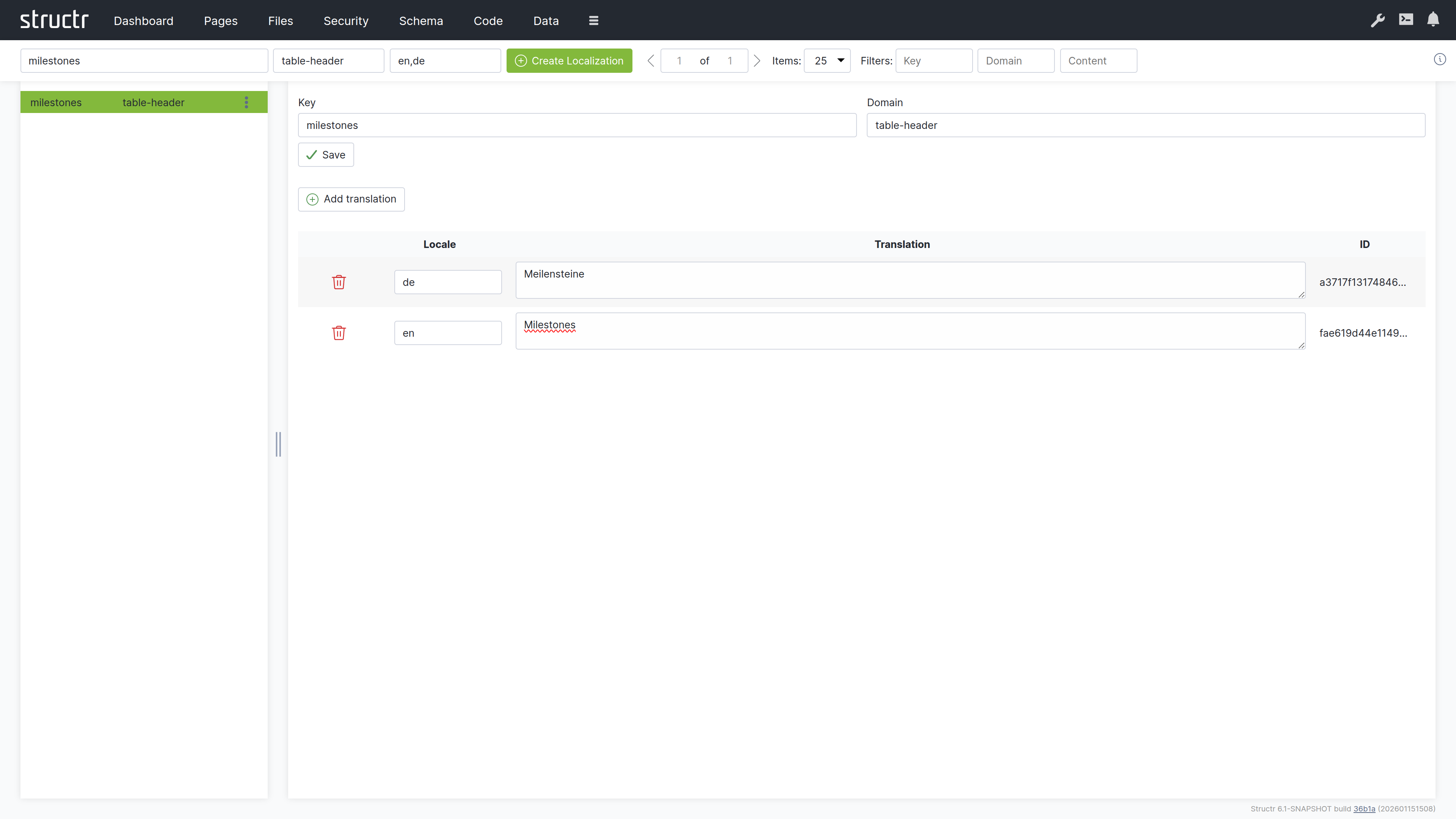
The Localization area is where you manage translations for multi-language applications. Here you create and edit the translation entries that the localize() function looks up when rendering pages. Each entry consists of a key, an optional domain for organizing related translations, and one or more locale-specific translations. When a page calls localize() with a key, Structr returns the appropriate translation based on the current user’s locale setting. By default, this area is hidden in the burger menu.
Note: This area appears empty until you create your first localization entry.
Secondary Menu
Create Localization
Three input fields let you create a new localization entry by entering Key, Domain (optional), and Locale(s). The locale field accepts a comma-separated list such as en,de,fr; Structr then creates one entry per locale in a single step. Click the Create Localization button to create them. After creation, select the entry in the list to add the actual translated text.
Pager
Navigation controls for browsing through large numbers of entries.
Filter
Three input fields let you filter the list by Key, Domain, and Content.
Left Sidebar
The sidebar lists all localization entries. Each entry shows its key, and entries with the same key but different locales are grouped together. Click an entry to select it and edit its translations in the main area.
The context menu on each entry provides Edit (opens the properties dialog) and Delete options.
Main Area
When you select a localization entry, the main area shows an editor for that key and all its translations across different locales.
Key and Domain
Two input fields at the top let you edit the key name and domain. Changing the key here updates all translations that share this key.
Save Button
Saves changes to the key and domain fields.
Add Translation Button
Adds a new translation row for an additional locale.
Translations Table
The table shows all translations for the selected key:
| Column | Description |
|---|---|
| (Actions) | Delete and Save buttons for each translation |
| Locale | The language code – edit directly to change |
| Translation | The translated text – edit directly to change |
| ID | The unique identifier (read-only) |
You edit the Locale and Translation fields directly in the table. Click Save on the row to persist your changes.
Related Topics
- Pages & Templates – The Translations section explains the
localize()function, locale resolution, and the Translations flyout